Getting Started
- Connect the included USB-C cable to the DC IN port on the back of the clock, then plug it into a suitable USB power adapter. Keep the clock connected to power during normal use.
- Press and hold the Light / Power button to turn the clock on. It automatically starts in Bluetooth mode.
- A built-in 1200 mAh battery keeps the time and your saved alarms during short power interruptions — it doesn't power the display or speaker on its own, so keep the clock plugged in for everyday use.
Setting the Time
- Press the Clock / Time button once. The hour digits will begin flashing.
- Set the hour using the Previous (–) or Next (+) button, then press Clock / Time to confirm.
- Set the minutes the same way, then press Clock / Time again to save.
12 / 24-hour format: press and hold the Clock / Time button to switch between the 12-hour and 24-hour display.
Switching Between Modes
Press and hold Mode / Play-Pause repeatedly to cycle through modes. After the last available mode, the cycle returns to Bluetooth.
- Bluetooth — activates automatically when the clock is turned on.
- FM Radio — the first long-press from startup opens FM Radio.
- White Noise — plays the built-in relaxation and sleep sounds.
- MicroSD / USB / AUX — available once the corresponding media or cable is connected.
Setting Alarm 1
- Press the Alarm 1/2 button once. Continue once Alarm 1 is selected.
- Set the hour using Previous (–) / Next (+), press Alarm 1/2 to confirm, then set the minutes the same way and press Alarm 1/2 again to confirm.
- Press Alarm 1/2 again, then use Previous (–) / Next (+) to choose an alarm sound you like.
- Press Alarm 1/2 once more to save.
Setting Alarm 2
Alarm 2 works independently from Alarm 1, so you can set two different wake-up times.
- Double-press the Alarm 1/2 button. Continue once Alarm 2 is selected.
- Set the hour using Previous (–) / Next (+), press Alarm 1/2 to confirm, then set the minutes the same way and press Alarm 1/2 again to confirm.
- Press Alarm 1/2 again, then use Previous (–) / Next (+) to choose an alarm sound.
- Press Alarm 1/2 once more to save.
Turning Alarms On or Off
Press and hold the Alarm 1/2 button repeatedly to move through these combinations, checking the display after each press:
- Alarm 1 turns OFF
- Alarm 2 turns OFF
- Alarm 1 turns ON
- Alarm 2 turns ON
An alarm's indicator appears on the display when it's on and disappears when it's off. Turning an alarm back on restores its saved time and sound.
Snooze
- When an alarm rings, press Timer / Snooze once. The alarm stops and rings again after 10 minutes.
- You can snooze as many times as you like — the clock doesn't limit repeats.
Stop the Alarm
- Press any button other than Timer / Snooze to stop a ringing alarm completely.
- The saved alarm stays enabled for its next scheduled day.
- If you do nothing, the alarm rings for 1 minute, pauses for 10 minutes, and rings again — this repeats until stopped.
Sleep Timer
- Press Timer / Snooze repeatedly to choose 15, 30, or 60 minutes, or OFF.
- When the timer expires, music, FM radio, or white noise sound, plus the night light and clock display, switch off.
- Your saved alarm stays active and can still ring at its scheduled time.
To cancel the timer early, press Timer / Snooze repeatedly until you cycle past "60" and the timer indicator disappears.
Night Light
Press Light / Power repeatedly to cycle through the full sequence:
- White Light High
- White Light Medium
- White Light Low
- 12 colorful light effects, one per press
- Light OFF, then the sequence repeats from the top
Only white light has adjustable High / Medium / Low brightness — color modes use a fixed preset brightness.
Display Brightness
- Double-press Timer / Snooze to adjust the clock display's own brightness, separate from the night light.
- Each double-press cycles: High → Medium → Low → High.
White Noise Sounds
- Press and hold Mode / Play-Pause to open Sleep Sounds.
- Short-press Mode / Play-Pause to play or pause the selected sound.
- Use Previous (–) / Next (+) to choose between 7 sounds: Alarm 1, Alarm 2, Alarm 3, Lullaby / Piano, Rain, Beach Waves, and White Noise. After the last sound, the selection cycles back to Alarm 1.
Connecting via Bluetooth
- When switched on, Bluetooth pairing mode starts automatically.
- Open Bluetooth on your phone and select "Muring Audio" from the device list.
- Wait for the confirmation tone — the speaker is now connected.
Control playback: press Mode / Play-Pause once to play or pause. Short-press Previous / Next to skip tracks; long-press either for volume.
Hands-Free Calling
Available whenever your phone is connected in Bluetooth mode. The same Mode / Play-Pause button controls every call function:
- Answer — press Mode / Play-Pause once.
- End the call — press the button again during the call.
- Reject — long-press the button while the phone is ringing.
- Call back — with no active call, double-press the button.
TWS Speaker Pairing
Pair two MURING speakers together for stereo sound:
- Turn on both MURING speakers without connecting either to your phone yet.
- Long-press Timer / Snooze on one speaker. A tone confirms the two speakers are paired.
- Connect your phone to "Muring Audio" — connect to one speaker only, both will play in stereo.
Important: disconnect both speakers from any other Bluetooth device before pairing. Both speakers can control the volume. Keep them within 15 metres of each other, ideally in an open space.
FM Radio
- Insert the detachable antenna into the AUX port and extend it for better reception.
- Long-press Mode / Play-Pause to enter FM mode.
- Press once to scan automatically for an available station.
- Press once to save a station — saved stations appear as CH01, CH02, CH03, and so on.
- Short-press Previous / Next to browse saved stations; long-press either for volume.
TF Card, USB Stick & AUX Cable
TF / microSD card: insert a card with supported music files and playback starts automatically. Use Previous / Next for tracks; long-press either for volume.
USB stick: insert a USB stick with supported music files — playback starts automatically, with the same track and volume controls.
AUX cable: remove the FM antenna from the AUX port first, then connect a 3.5mm AUX cable to your phone, tablet, or audio device.
The AUX port is shared: it's the FM antenna or an AUX cable, not both at once.
Wireless Charging
- Keep the alarm clock connected to USB-C power — wireless charging requires external power and won't run on the backup battery alone.
- Place a phone that supports wireless charging flat on top of the clock, centred on the Qi symbol. Reposition it slightly if needed.
- Check your phone screen for the charging indicator before leaving it on the surface.
For best results: keep the surface clean, remove metal or magnetic objects from the charging area, use a phone case thinner than 5mm, and reposition the phone if charging doesn't begin. Supports up to 15W with a compatible phone and power adapter.
Rear Ports & Connections
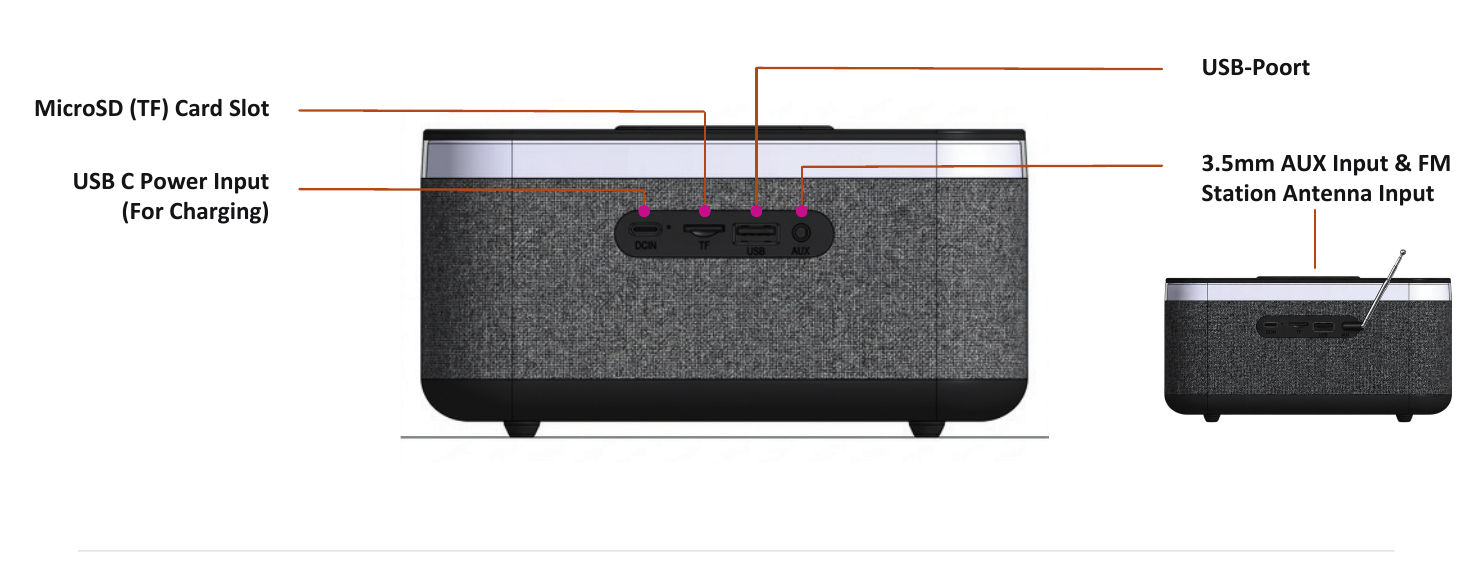
- DC IN — USB-C power input for charging the clock itself.
- TF — MicroSD (TF) card slot for music playback.
- USB — USB port for a USB stick with music files.
- AUX — 3.5mm input, shared between the detachable FM antenna and an AUX audio cable.